Business System · 2024
Delivery Order Desktop Client
A Windows app that receives store orders and prints tickets on a receipt printer
A Windows desktop client that polls for incoming delivery orders and announces them with a sound and an always-on-top alert, so staff can accept, cancel, complete and print an order without leaving the app.
- Client
- Confidential client
- Category
- Business System
Overview
This is the Windows desktop client that restaurants on-demand delivery service use to handle their orders. It is installed on the shop PC or POS terminal and stays resident, letting staff go from noticing an order to accepting it, cancelling it, marking it complete and printing the kitchen and rider ticket in one place.
Orders come from the seller system over HTTP, and tickets go out on the serial receipt printer the shop already has. The build is a single PyInstaller executable, so there is nothing to install on site.
Challenge
Kitchen staff cannot watch a screen while they cook. Keeping the seller system open in a browser gave them no reliable way to notice a new order the moment it arrived, and the order still had to be written out by hand for the kitchen and the rider.
The shop floor added its own constraints. POS displays in the field include small resolutions such as 1024x768, so no screen element could rely on fixed pixel sizes, and every shop's receipt printer sits on a different COM port and baud rate, which staff had to be able to set themselves.
Solution
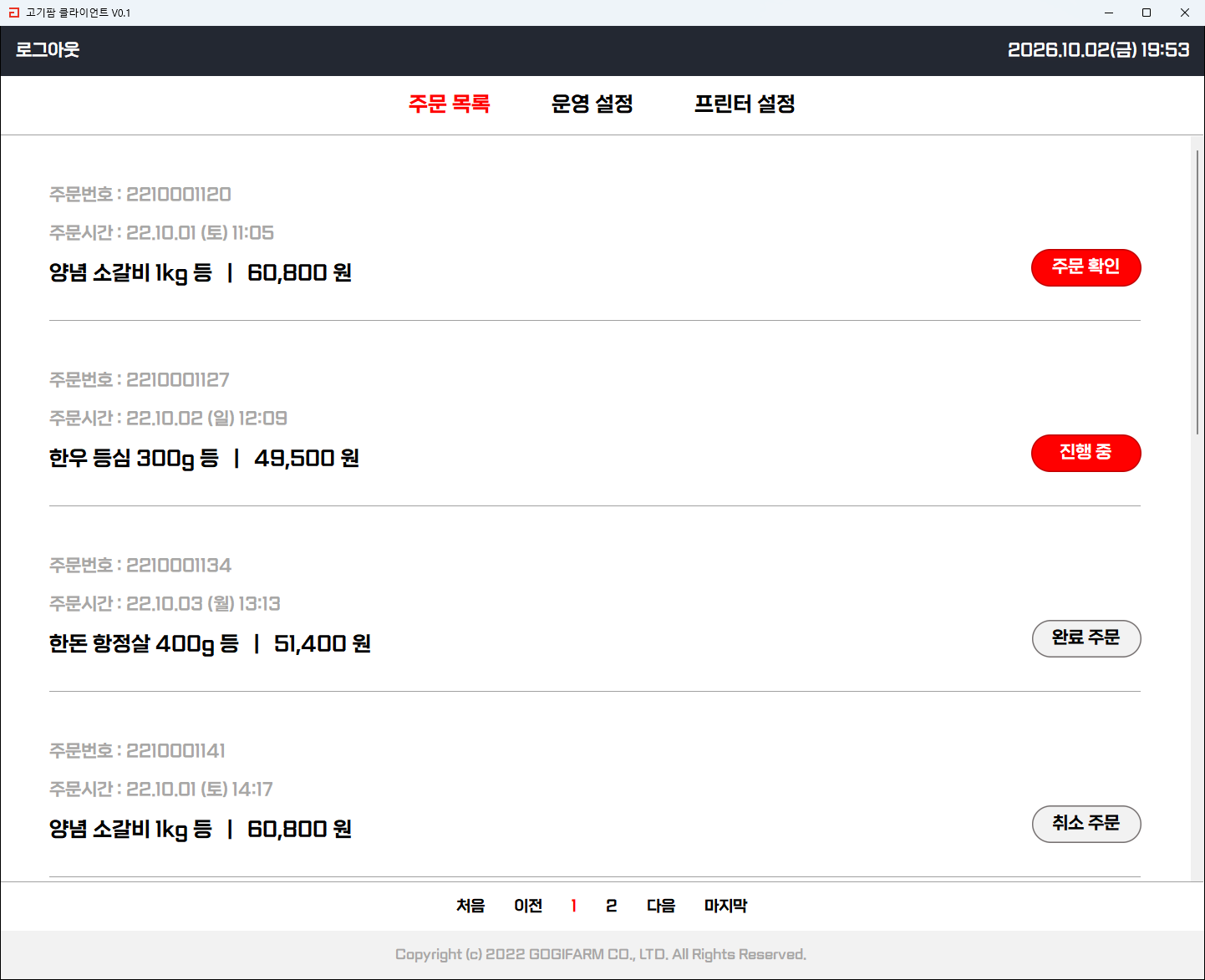
After login the app opens the order list, with a button on each order that reflects its state: new orders to confirm, accepted orders in progress, and completed or cancelled orders, ten to a page.
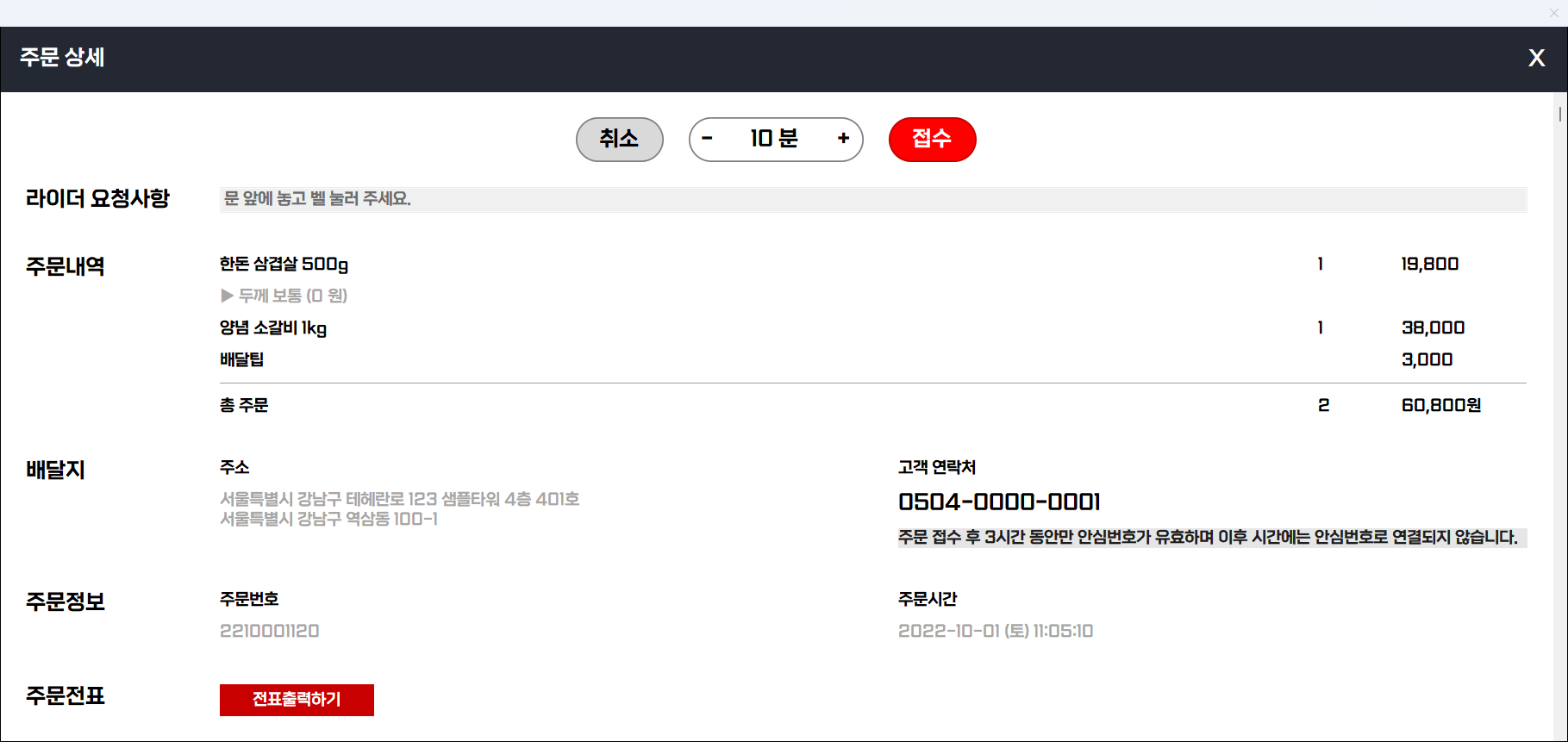
Opening an order brings up the detail window, which gathers the rider's instructions, line items with option pricing, the road and lot address with the masked customer number, and the order number and time. From here staff can:
- Set a delivery time from 5 to 90 minutes in 5-minute steps and accept the order
- Cancel with a reason: customer request, shop circumstances, undeliverable, or out of stock
- Mark an in-progress order complete
- Print the order ticket
New orders and seller-system notices are checked in the background every five seconds. A new order raises an always-on-top alert with a sound, and confirming it jumps straight to the order list. Closing the window leaves the app running in the tray so alerts keep coming.
System architecture
- Screens: one wxPython frame holds the login, order list, operation settings and printer settings panels, switched from the menu bar. Order detail and alerts are separate windows.
- Server access: all network code lives in a single module, which posts to a single endpoint and varies a
servicefield for login, order list, order detail, new-order count, notices, accept/cancel/complete and version checks. The fetched order list is cached in memory for the list screen. - Watcher threads: new-order polling, notice polling and alarm playback each run on their own daemon thread, separate from the UI.
- Printing: order details are translated into ESC/POS commands and written to the serial printer.
Implementation
Telling a new order apart. The count of orders in the "new" state is not enough: when new orders are already queued, another arrival is invisible in that number. The client instead compares the current order numbers against the set it held a moment ago and alerts only on a number it has never seen that is also in the new state.
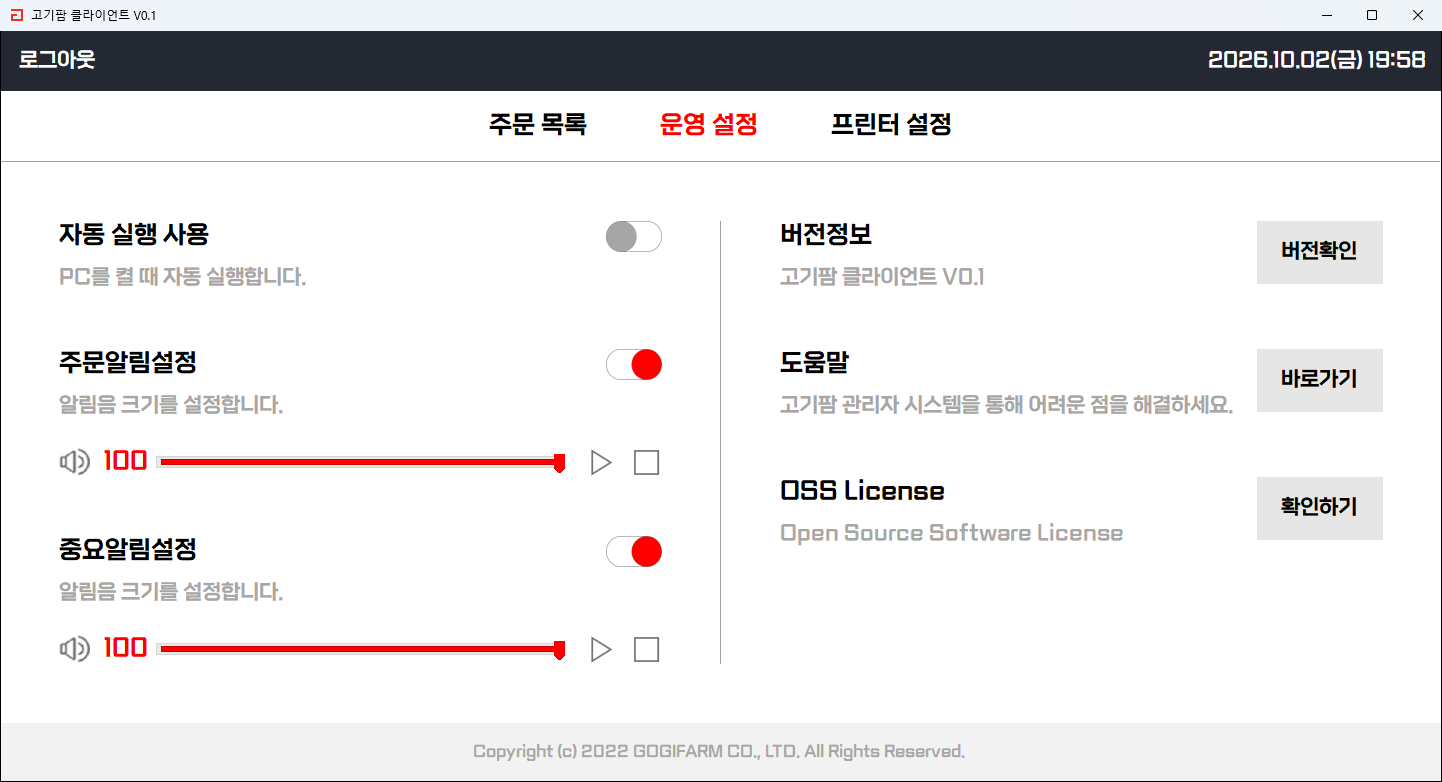
Alarms. WAV playback runs through a callback stream that scales each frame by the configured volume. The order alarm repeats for as long as the alert window is open; the notice alarm plays once. Staff toggle each alarm, set its volume and preview it from the operation settings screen.
Typesetting Korean tickets. A receipt printer is a fixed-width device, so the ticket is laid out by hand against the 42 columns of 80mm paper. Korean characters count as two columns when aligning the item, quantity and amount columns, and item names that overrun their column wrap onto the next line. Output is encoded as CP949.
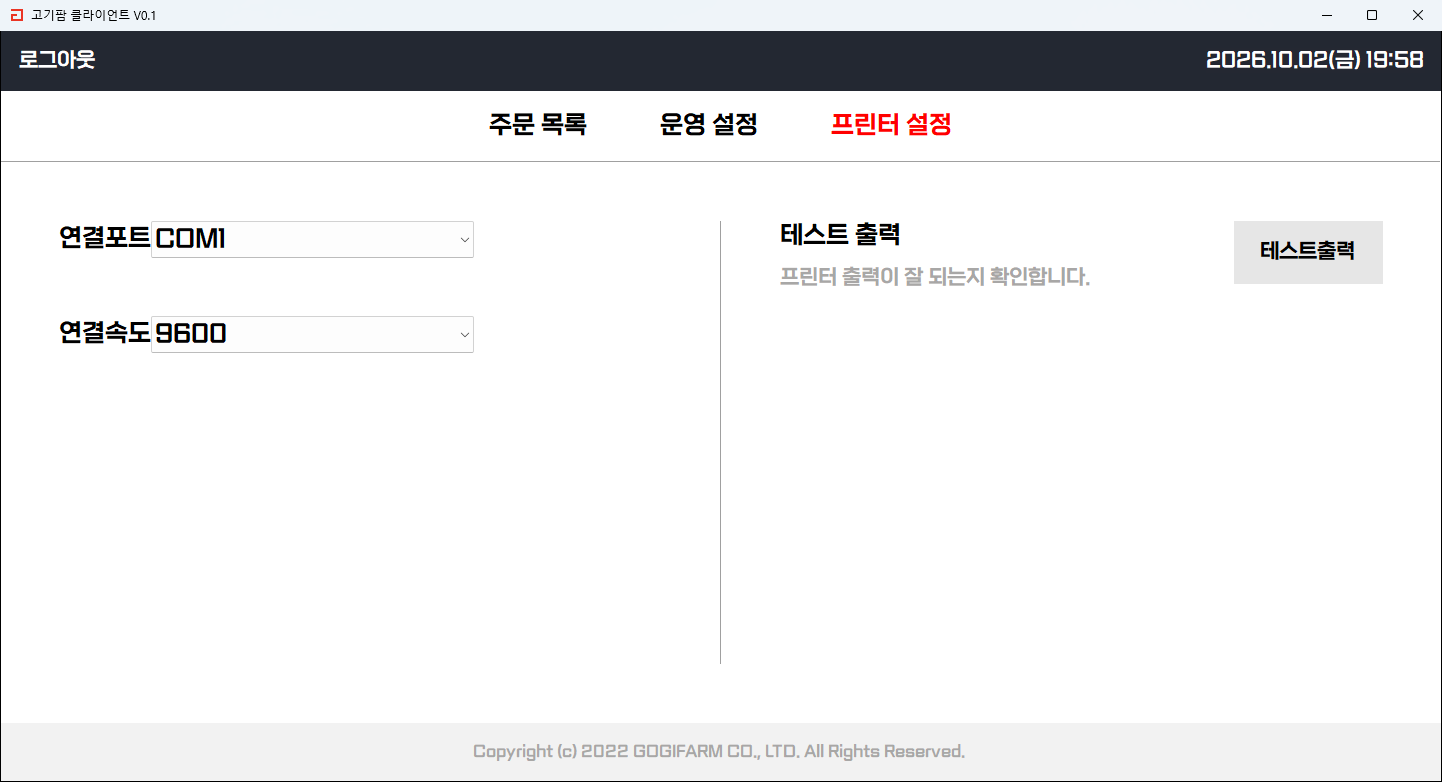
Checking the connection. Before printing, the client asks WMI whether the selected COM port actually exists and reports a clear failure if it does not. Port and baud rate are chosen on the printer settings screen and verified with a test print.
Fitting the shop floor. Font sizes are derived from the monitor height, so text stays readable on small POS displays. Autostart is registered under the user's run key in the registry, replacing a stale entry if the executable has since moved. Logs roll over at midnight and keep ten days, with standard output and errors routed into the same log.
Result
Staff now get an alert, read the order, set a delivery time, accept it and print the ticket from a single program. There is no browser tab to keep open and nothing to copy out by hand.
The client starts with the PC and sits in the tray, so nobody has to launch it, and the printer port and baud rate can be set and tested on site by an installer or by the staff themselves. Day-by-day logs make it possible to retrace where something went wrong when a shop reports a problem.
Technology
- Python
- wxPython
- python-escpos
- PyAudio
- PyInstaller
Screens
Have a project in mind?
Tell me about the problem and where things stand, and we can work out the right approach together.
Discuss a project